1.
Click on the link below to go to the webpage that contains the extension that is needed for the Brave browser.
Get Paint Online - Drawing Tool for Brave
Get Paint Online - Drawing Tool for Brave
2.
You should see a button containing Add to Brave. Click on the button once.
3.
A small window will pop up with a warning. Click on the button Add Extension once.
4.
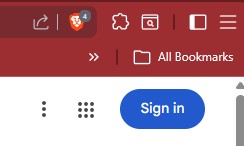
Look for this icon at the top, right-hand corner of your browser window and click once.
5.
After Clicking, a window will open up. You should see Paint Online - Drawing Tool listed.
6.
There should be an icon to the right of the words that looks like a push-pin used on bulletin boards.
7.
Click that Icon. The icon for the extension for Paint Online - Drawing Tool should appear on your toolbar.
8.
Close your Brave browser and then open it again. You should still see the new icon.
9.
Whenever you have a Puzzle opened on your page, click on the icon to start searching for words.
10.
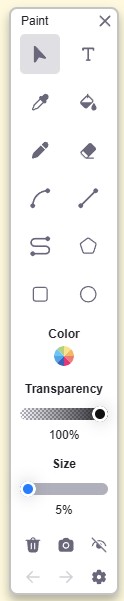
Look below, you should see a palette that opens on your page when you click the Paint Tool Icon. There are some settings that you will want to change to make your game play more enjoyable.
11.
Item 11
12.
13.
14.
15.



Clicking the icon to the left, allows you to draw straight lines on the page. This makes playing the puzzles much easier and neat looking. Click on the first or last letter of the word you have found and drag the cursor to the other end of the word and release. A straight line is drawn over those letters.
Clicking the Color wheel allows one to change the color of the lines that you draw on the puzzle. When the icon is click a palette opens with the rainbow at the top. Choose a color by clicking on a color or dragging the selector from side to side to get that perfect color. The circle at the right lets you make adjustments to the color you have chosen. The resulting color is to the right of the OK button.
Clicking the Transparency icon, allows one to change the transparency of the straight line drawn. It's suggested to change this percentage to 50% or less. By using this percentage, it allows the letters underneath the straight line to be seen.
The Size icon allows one to change the width of the straight line drawn. It's suggested to change the percentage to 100%. It can always be changed later.
Clicking the Garbage Can icon to the right, erases all changes to the page.
Clicking the Hide icon (an eye with a slash through it) will hide the palette on the puzzle you are playing. To have the palette return, click on the Extension icon at the top, right-hand corner of the browser window.
Clicking the Snapshot icon (camera) above, takes a snapshot of the page you are playing. It opens the image in a new browser window to allow one to crop the image down to what is important on the page that you want to save or copy.
Click Crop, then use your mouse to draw a box to enclose what is important on the page.
Click the Crop button that pops up. And then click Finish.
By clicking the Download Button, you can save the image to your computer or thumb drive.
By clicking the Print button, you can print the image on your connected printer.
By clicking the Copy to Clipboard button, you can paste the image in to a word document or other computer program that allows images.
Click Crop, then use your mouse to draw a box to enclose what is important on the page.
Click the Crop button that pops up. And then click Finish.
By clicking the Download Button, you can save the image to your computer or thumb drive.
By clicking the Print button, you can print the image on your connected printer.
By clicking the Copy to Clipboard button, you can paste the image in to a word document or other computer program that allows images.
When this palette appears, the webpage is locked down to allow changes to the page. Clicking the Arrow Head icon allows one to interact with the webpage. You may want to scroll or click a button that is on the page. With the first puzzle, you may need to adjust the puzzle so that it fits in the window. Clicking the icon at B, will turn the extension on again.